> For the complete documentation index, see [llms.txt](https://docs.smmall.cloud/llms.txt). Markdown versions of documentation pages are available by appending `.md` to page URLs; this page is available as [Markdown](https://docs.smmall.cloud/ios/share-a-file.md).
# Share a File
How to share a file on Smmall Cloud for iOS
Sharing a file on Smmall Cloud is simple. Upload it, grab the link, and send it to anyone. Here's every way to do it.
### Uploading a File
Tap the **+** button in the bottom-right corner of the Files tab. A menu pops up with several options:
| Option | What It Does |
| ---------------------- | ---------------------------------------------------- |
| **Share a photo** | Pick up to 20 photos or videos from your library |
| **Share from camera** | Take a photo or record a video right now |
| **Share my clipboard** | Upload whatever you just copied (images, text, etc.) |
| **Share a file** | Browse and pick any file on your device |
| **Share a folder** | Upload an entire folder of files at once |
Once you pick your file, it uploads automatically. You'll see a progress bar while it's uploading.
#### Uploading from Other Apps
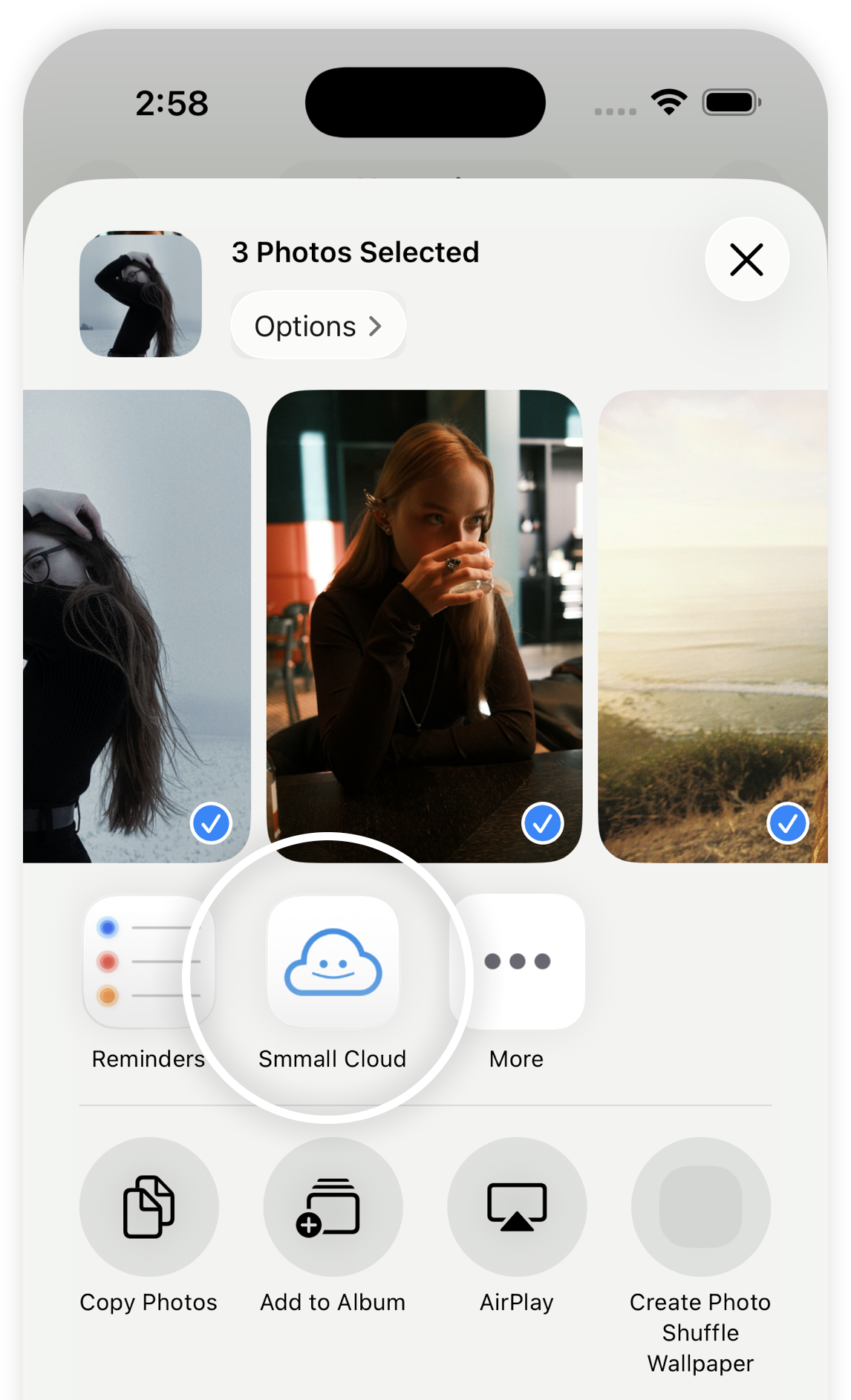
You can also share files directly from other apps on your device. Whenever you see the iOS share sheet (in Files, Safari, Photos, or any other app), look for **Share on Smmall Cloud** in the list.
> **iPad Tip:** On iPad, you can drag files directly from other apps (like Files or Safari) and drop them onto the Smmall Cloud window to upload them. This works with images, videos, documents — just about anything.
{% embed url="" %}
Drag & Drop on iPad
{% endembed %}
### Getting a Share Link
Every file you upload gets its own link. There are a few quick ways to grab it:
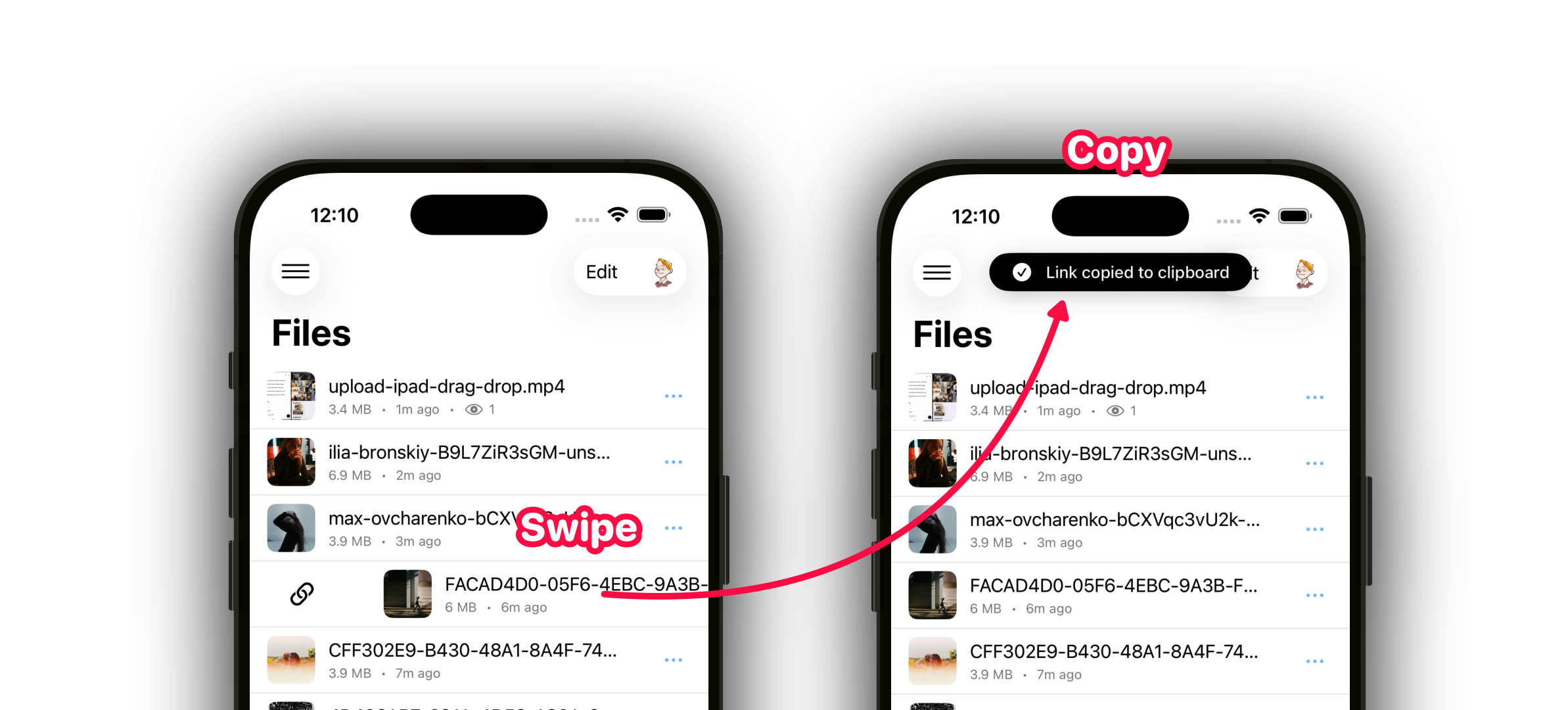
#### Swipe to Copy
The fastest way. Swipe right on any file in your list and the link is copied to your clipboard instantly.
#### From the Menu
Long-press any file (or tap the **...** button) to see the full menu. Tap **Copy Link** to copy the URL.
#### From the File Viewer
Open a file by tapping on it. The viewer has a **...** menu in the toolbar with the same Copy Link option.
#### Share Sheet
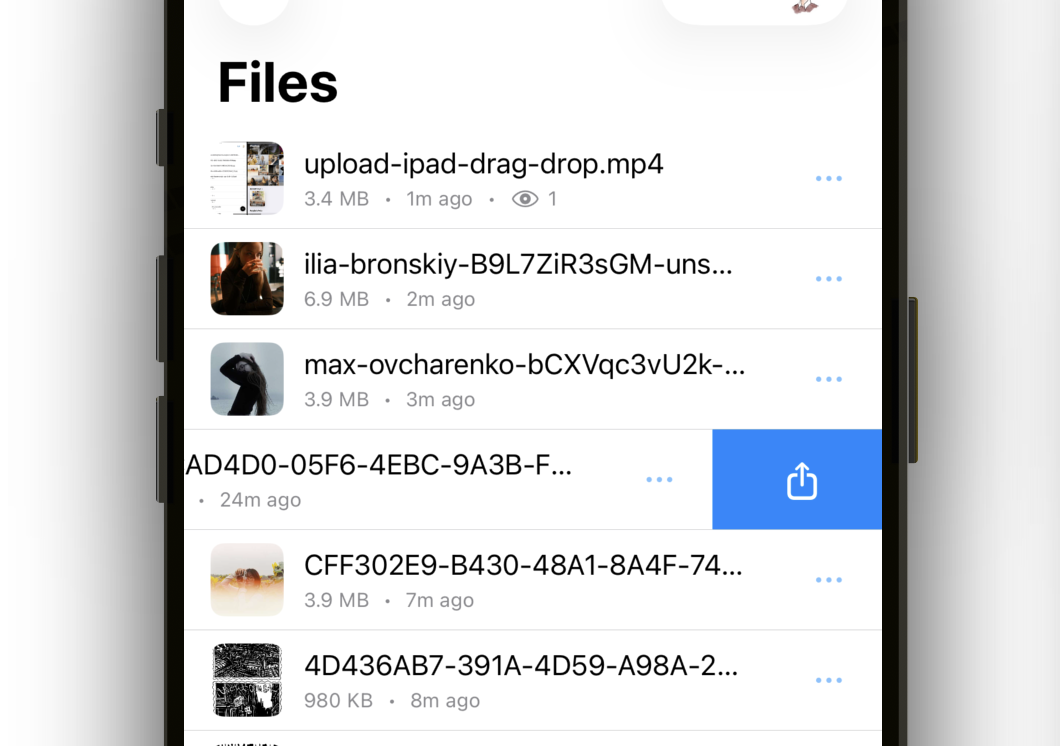
Swipe left on a file to open the iOS share sheet. This lets you send the file's link directly to Messages, Mail, AirDrop, or any other app.
You can also find **Share** in the long-press menu or the file viewer's **...** menu.
#### QR Code
Need to share a file with someone in person? Generate a QR code they can scan with their phone.
1. Long-press a file (or tap **...**) and choose **QR Code**
2. The QR code appears with your file's share URL
3. The other person scans it with their camera
4. Tap **Save to Photos** to keep the QR code image, or **Share** to send it
#### Open in Browser
Want to see exactly what your file looks like when someone visits the link? Tap **Open in Browser** from the menu to view it in Safari.
### Custom Links
By default, every file gets a link with a random code (like `yourname.smmall.cloud/abc123`). If you want something more memorable, you can create a custom short link.
1. Long-press a file and tap **Edit Link**
2. Choose a custom slug — this is the part after `/l/` in your URL
3. Optionally add security (password, email gate, or expiration)
4. Customize the link preview (title, description, thumbnail) that shows when shared on social media
5. Tap **Save**
Your file is now available at `yourname.smmall.cloud/l/your-custom-slug`.
#### Link Security Options
| Mode | What Happens |
| ------------------ | ------------------------------------------------ |
| **Open** | Anyone with the link can view the file |
| **Password** | Visitors must enter a password first |
| **Email Required** | Visitors must provide their email before viewing |
| **Expires** | The link stops working after a date you choose |
### Editing File Details
You can update a file's name and description at any time:
1. Long-press the file and tap **Edit**
2. Change the title or add a description
3. Tap **Save**
The description shows up on the file's share page, so it's a nice way to add context.
### Deleting a File
If you no longer need a file:
1. Long-press and tap **Delete**
2. Confirm the deletion
This permanently removes the file and its share link.
#### Deleting Multiple Files
Need to clean up a bunch of files at once? Tap **Edit** in the toolbar (or long-press any file) to enter multi-select mode. Select the files you want to remove, then tap **Delete Selected** from the bottom menu.
### Viewing Your Files
Tap any file to open it in a full-screen viewer. The app picks the best viewer for each file type:
* **Photos** — Pinch to zoom, swipe to navigate between files
* **Videos** — Full playback controls with swipe navigation
* **Audio** — Player with track info (artist, album, title) when available
* **PDFs** — Document viewer with page navigation
* **Other files** — A clean preview showing the file thumbnail, name, and size
In any viewer, swipe left or right to move to the next or previous file — just like flipping through a photo album.