> For the complete documentation index, see [llms.txt](https://docs.smmall.cloud/llms.txt). Markdown versions of documentation pages are available by appending `.md` to page URLs; this page is available as [Markdown](https://docs.smmall.cloud/links-permalinks.md).
# Links (Permalinks)
Create custom, trackable short links to share your content with anyone. Links can point to external URLs or to files and folders hosted on Smmall Cloud.
### **Overview**
The Links feature allows you to:
* Create memorable short URLs with custom slugs
* Protect links with passwords, email gates, or expiration dates
* Track views and see where your traffic comes from
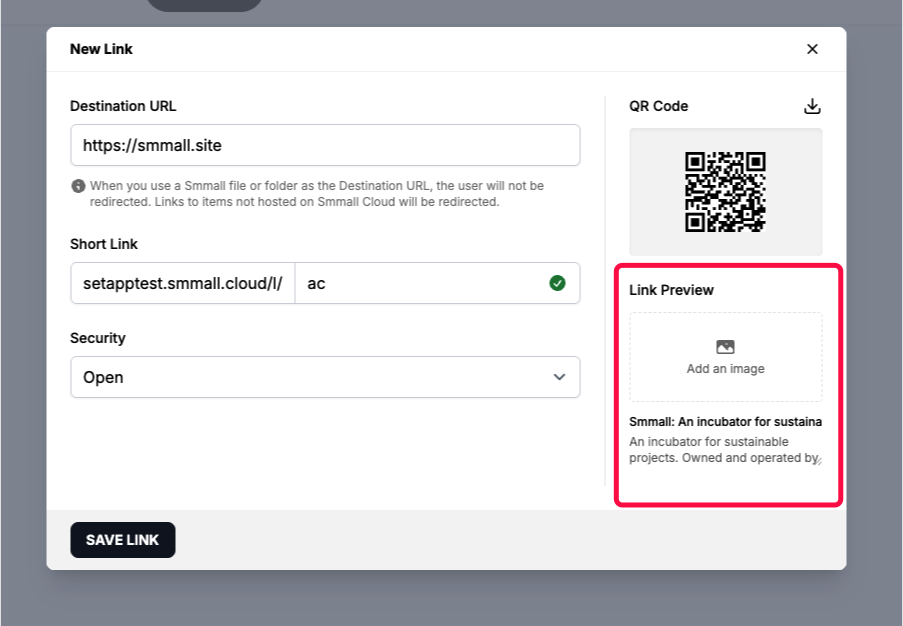
* Customize link previews with titles, descriptions, and thumbnails
* Generate QR codes for easy sharing
### **Creating a Link**
1. Navigate to [**Links**](https://smmall.cloud/me/links) in your dashboard
2. Click **Create Link**
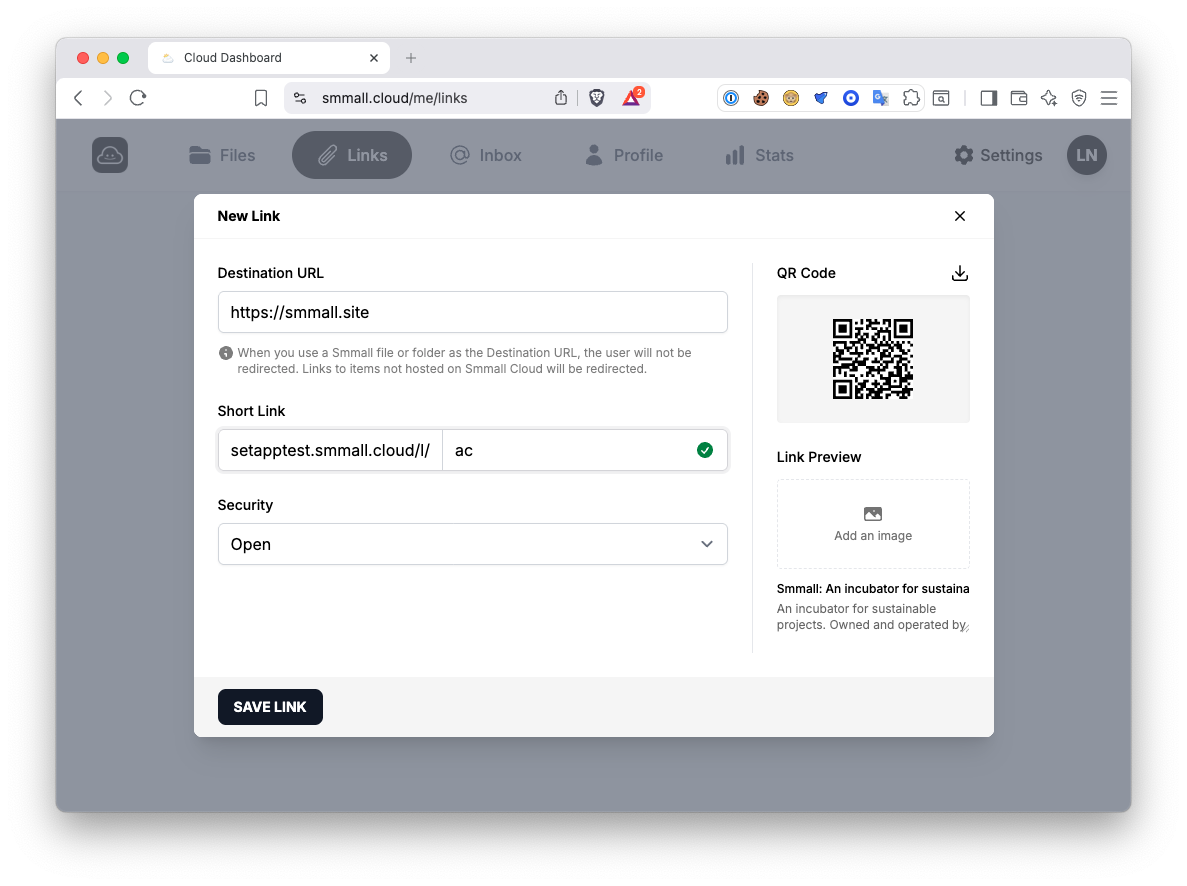
3. Enter the destination URL
4. Customize your link settings (see below)
5. Click **Save Link**
**Destination URL**
Enter any valid URL you want to redirect to. Smmall Cloud will automatically fetch the page's Open Graph metadata (title, description, and image) to use as the default preview.
**Custom Slug**
Choose a memorable slug for your short link. For example, if your slug is my-project, your link will be:
```
https://yourdomain.smmall.cloud/l/my-project
```
If you have a [custom domain](/custom-domains.md) configured, it will use that instead:
```
https://yourcustomdomain.com/l/my-project
```
The availability of your chosen slug is checked in real-time as you type.
### **Security Options**
Protect your links with one of four security modes:
**Open (None)**
Anyone with the link can access the destination immediately.
**Password Protected**
Visitors must enter a password before being redirected. Set your password when creating the link.
**Email Gated**
Visitors must provide their email address to access the content. Collected emails are stored and can be viewed in your link statistics.
**Expiration**
The link becomes inaccessible after a specified date and time. Quick-select options are available for common durations:
* +1 day
* +1 week
### **Customizing Link Previews**
When someone shares your link on social media or messaging apps, a preview card is displayed. You can customize:
* **Title** - The headline shown in the preview
* **Description** - A short description of the content
* **Thumbnail** - The preview image (upload your own or use the automatically fetched image)
If you don't customize these fields, Smmall Cloud uses the Open Graph metadata from the destination URL.
### **QR Codes**
Every link automatically gets a QR code that you can:
* Preview in the link editor
* Download as a PNG image
* Use in printed materials, presentations, or digital media
### **Link Statistics**
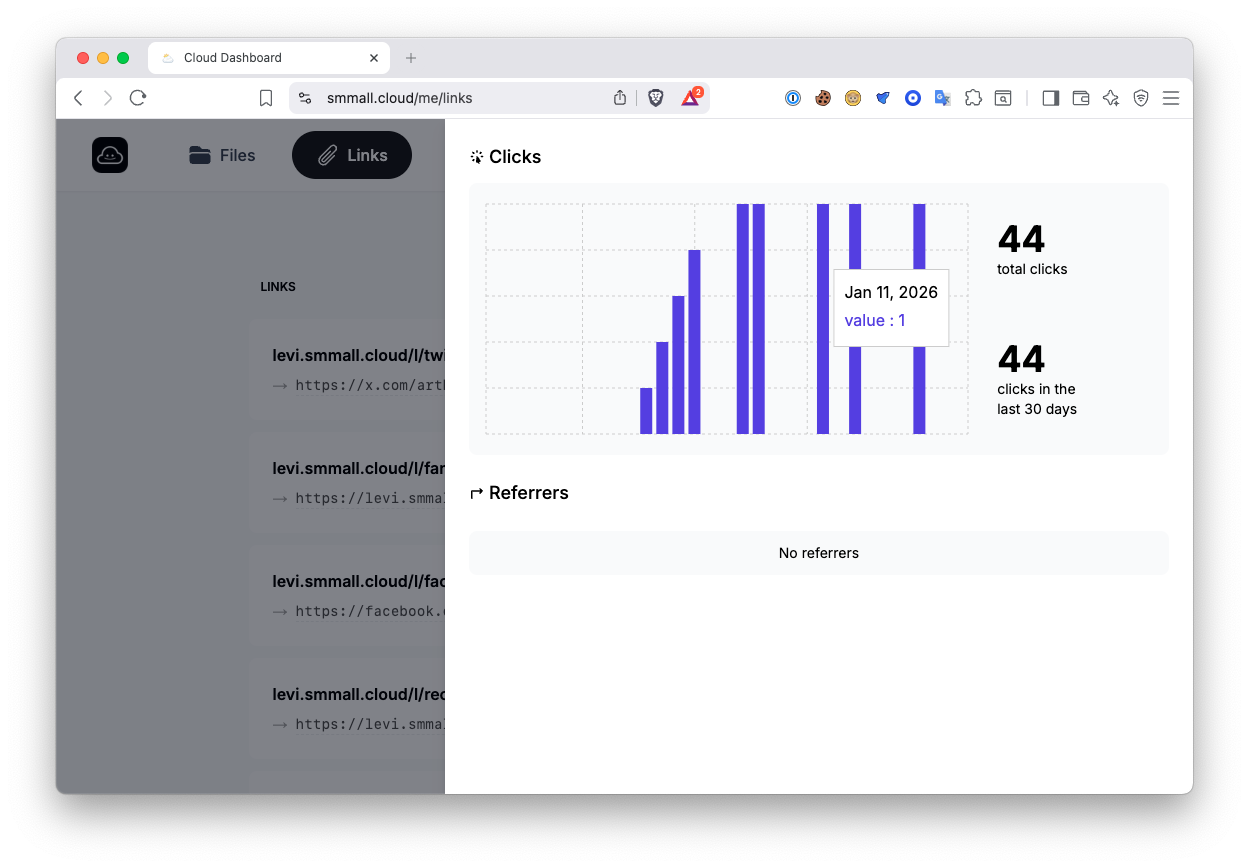
Track how your links perform with built-in analytics:
**Views**
* **Total views** - All-time click count
* **Monthly views** - Views in the current month
* **Daily breakdown** - Bar chart showing views over the last 30 days
* **Referrers**
See where your traffic is coming from. Referrer tracking shows which websites and platforms are driving clicks to your links.
To view statistics:
1. Go to your Links dashboard
2. Click the stats icon on any link
3. View the analytics panel
### **Tips**
* **Keep slugs short and memorable** - They're easier to share verbally and in print
* **Use expiring links for time-sensitive content** - Promotions, event RSVPs, or limited offers
* **Email-gate valuable content** - Build your mailing list while sharing resources
* **Check your referrers** - Understand which channels drive the most traffic
* **Customize previews** - A good title and thumbnail increase click-through rates