> For the complete documentation index, see [llms.txt](https://docs.smmall.cloud/llms.txt). Markdown versions of documentation pages are available by appending `.md` to page URLs; this page is available as [Markdown](https://docs.smmall.cloud/ios/share-a-folder.md).
# Share a folder
Folders let you group related files together and share them as a collection. Think of them as mini galleries or file bundles that anyone can browse with a single link.
### Creating a Folder
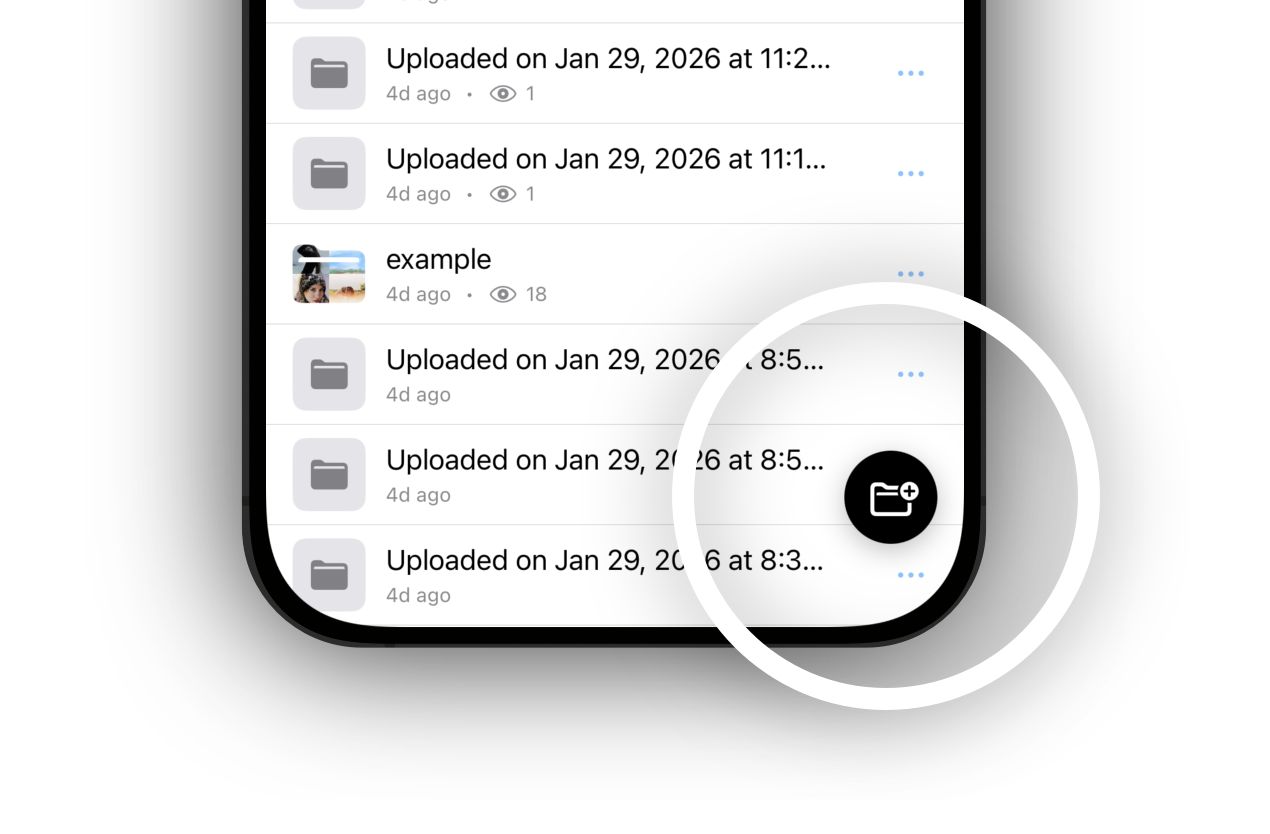
1. Open the **Folders** tab from the sidebar
2. Tap the **+** button in the bottom-right corner
3. Give your folder a name
4. Optionally pick a cover image from your photo library
5. Tap **Create**
Your new folder appears in the Folders list, ready for files.
### Adding Files to a Folder
There are several ways to get files into a folder:
#### Upload Directly Into a Folder
1. Open a folder by tapping on it
2. Tap the **+** button
3. Choose your upload method (photo, camera, clipboard, file, or folder)
4. The files upload directly into this folder
#### Move Existing Files
Already uploaded a file and want to organize it later? No problem.
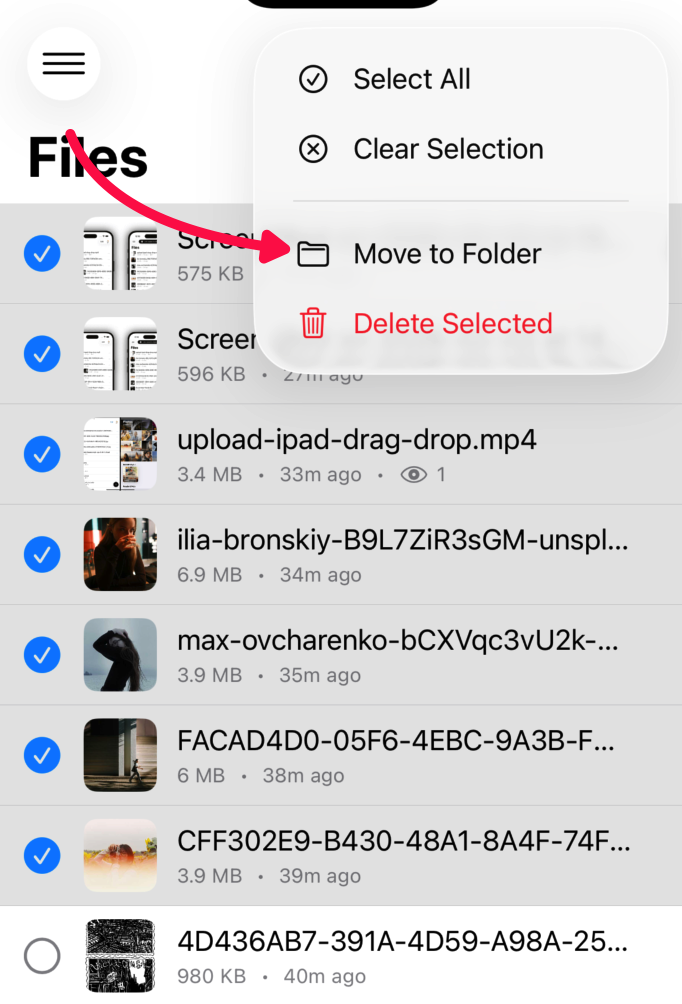
1. Go to the **Files** tab
2. Long-press the file and tap **Move to Folder**
3. Pick the destination folder
4. Done — the file moves instantly
> **Tip:** You can drag and drop files between folders. Just long-press a file to pick it up, then drop it onto a folder in the list. You can even drag files from the Files tab and drop them onto a folder in the sidebar.
{% embed url="" %}
### Organizing Files Inside a Folder
Once files are inside a folder, you can arrange them in the order you want.
#### Reordering Files
Inside a folder, each file row has a drag handle on the right side. Press and hold the handle, then drag the file up or down to reposition it. The new order saves automatically.
### Sharing a Folder
Sharing a folder works just like [sharing a file](/ios/share-a-file.md). Every folder gets its own link.
* **Swipe right** on the folder to copy the link
* **Swipe left** to open the share sheet
* **Long-press** and choose **Copy Link**, **Share**, or **QR Code**
When someone opens a folder link, they see all the files inside, arranged in the order you set, using the display mode you chose.
#### Custom Folder Links
Just like files, you can create a [custom short link](/ios/share-a-file.md#custom-links) for a folder:
1. Long-press the folder and tap **Edit Link**
2. Set a memorable slug (e.g., `vacation-photos`)
3. Customize the link preview for social sharing
4. Tap **Save**
Now your folder is at `yourname.smmall.cloud/l/vacation-photos`.
### Editing a Folder
To change a folder's name or cover image:
1. Long-press the folder and tap **Edit**
2. Update the name or pick a new cover image
3. Tap **Save**
### Deleting a Folder
Long-press the folder and tap **Delete**. You'll see a confirmation warning that this will permanently delete the folder **and all its contents**. This can't be undone.